
pixFront
Loading the Image
Start up pixFront, navigate to 'File', and then choose 'Select Image'. The image is loaded and displayed on the left-hand side of your screen. You can also simply drag and drop the image onto the left-hand pane.
Note: This tutorial image can be found in the 'sample' directory pixFront installed. By default, this is C:\Program Files\PixTOPO\pixFront x64\sample.
Measuring the Four Corners.
Once the image has loaded, a rectangular area is automatically placed over the image, as shown below. Your next step is to move the four scopes --- the small light-blue squares that represent the corners of the rectangular area --- and place them at the corners of the area you would like to have transformed.
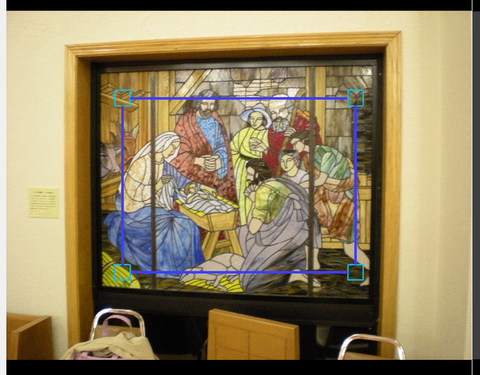
To select a corner precisely, zoom into the area around the corner.
You can do this by rotating your mouse wheel on the left-hand pane or pressing the plus (+) key. Move around the image by holding down the right mouse button, or by using the arrow keys. Zoom into and move around the image until the corner is clearly visible, as shown below.
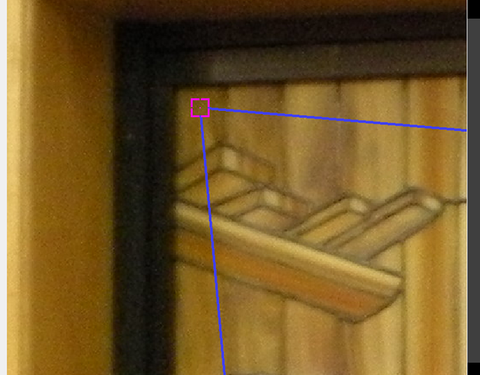
Move your mouse cursor inside the scope. When the color of the scope changes to pink, hold down the left mouse button and drag the scope to the corner of the rectangle you want to select.
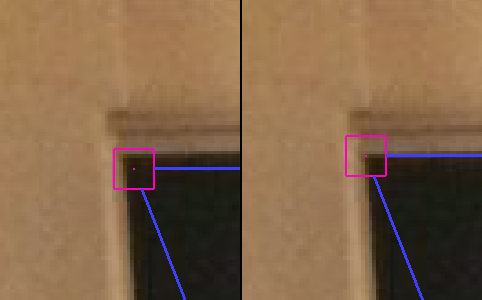
Position the scope until the central dot sits right in the corner, then release the mouse button.
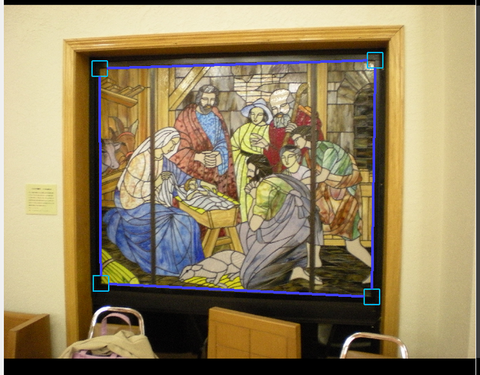
Repeat the same process for all four corners of the rectangular area. The result should look like the above example, where the large blue box indicates the selected area.
Transforming the Image
Now, navigate to the 'Transformation' menu and select 'Transform Image'. The selected area is transformed into rectangular form and displayed on the right-hand side of your screen.

Saving the Transformed Image
Go to 'File' and select 'Save the Transformed Image' to save the transformed image displayed on the right-hand side.
The measured coordinates of the corners and the specified parameters can be stored in the parameter file. Go to 'Transform' and select 'Save Parameters'.
When the same image is reloaded, the saved coordinates and parameters can be reused by selecting 'Load Parameters' and choosing the saved parameter file. This allows you to redo the transformation of the image with different coordinates and parameters.